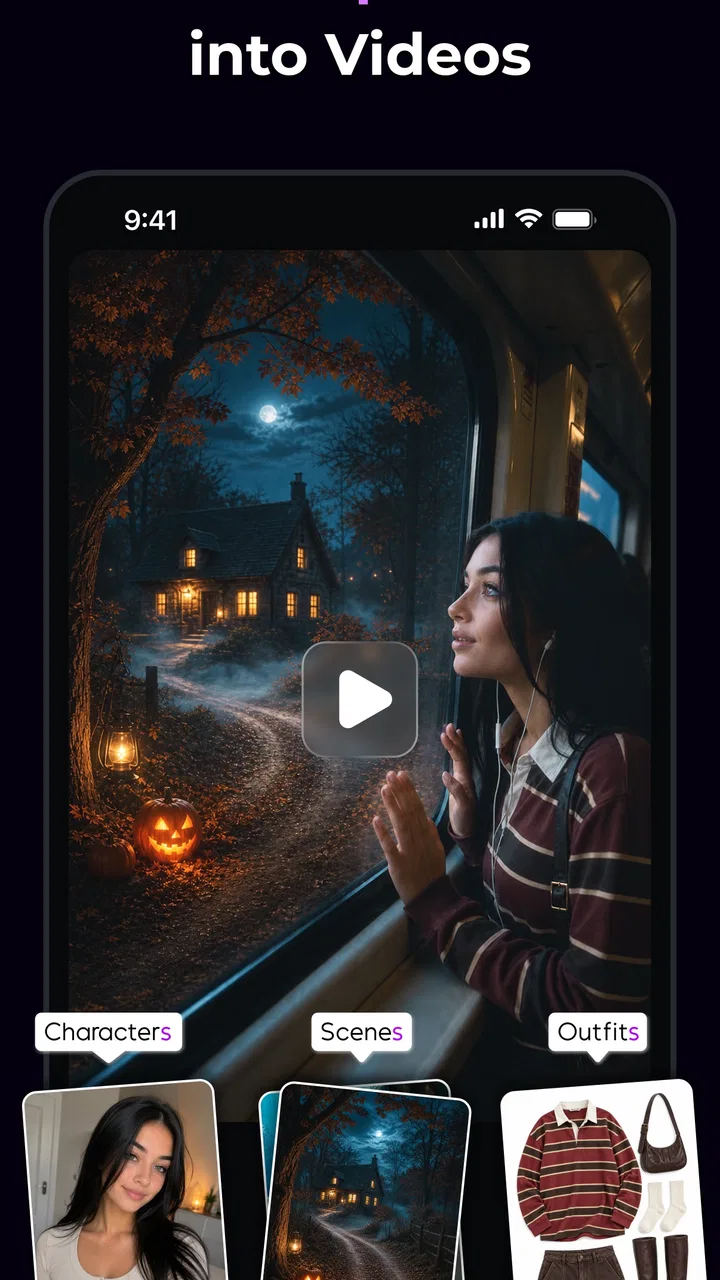
Koi AI - AI Video Generator
- 3.8
- Rating
- 100.00K
- Installs
- Free
- Price
 Analysis by App-foxy
I approached Koi AI as a practical photography app rather than as a replacement for a full video editor. Its promise is simple: turn an idea into a video with the help of AI. In use, that makes it most interesting for people who have a visual concept but do not want to begin with a blank timeline, a camera setup, or a complicated editing interface. I found the experience easiest to understand when I treated it as an idea-development tool first and a finishing tool second.
The app comes from POLYVERSE INC. and is available free of charge, although purchases inside the app range from $1.99 to $99.99 per item. It is listed for a Teen audience, runs on Android 8.0 and later, and the current version is 1.0.6. Its store summary, “Turn Any Idea into a Stunning Video,” sets an ambitious expectation, so the useful question is not whether it can magically produce every kind of film, but whether it helps me move from a rough thought to something shareable with less effort.
Starting with a repeatable video workflow
My preferred starting point is deliberately modest. Before opening the generator, I reduce the idea to three parts: the subject, the action, and the atmosphere. “A paper boat crossing a rainy city street at night” is more useful than a long paragraph full of unrelated visual instructions. This gives the app a clear creative center and makes it easier to judge whether the result is close to the original intention.
You May Also Like

 Blood Strike: 2.5 Anniversary
Blood Strike’s Loadouts Turn Every Drop Into a Tactical Gamble
A close look at Blood Strike’s custom loadouts: how fast access to signature weapons reshapes its battle royale rhythm, rewards preparation, and narrows the gap between fights.

 Pandora - Music & Podcasts
Pandora’s Music Is Easy to Start, but Harder to Recover
Pandora’s strength is its low-effort path from a seed to a station. Its weak spot is how much confidence it asks you to place in connection, setup, and quiet recovery.

 8 Ball Pool
 Is Built on Rivalries, Rematches, and Routine
A close look at the rivalries, rematches, shared routines, and unanswered safety questions that turn a quick pool match into a persistent mobile community.

 Samsung Music
’s Quiet Strength Is Playing What You Already Own
Its reach comes less from spectacle than from dependable access to a personal library. That simplicity is both the app’s strongest retention engine and its ceiling.

 AccuWeather: Weather Radar
AccuWeather Review: A Quick, Clear Forecast for Everyday Decisions
For everyday plans, the best forecast is the one you can understand quickly. AccuWeather makes rain timing, radar, and local conditions easy to act on, with a few trade-offs.

 Hill Climb Racing
Why Hill Climb Racing Still Turns Crashes Into One More Run
A tiny car, a bumpy hill and one more upgrade: Hill Climb Racing keeps resurfacing because its simple chaos makes every near-miss feel personal.
More From Our News Desk
View All News


That habit matters because AI video tools can encourage endless prompting. It is tempting to keep adding adjectives whenever the first result misses the mark. In my experience, that often makes the request less coherent. I get more useful iterations by changing one important element at a time: first the subject, then the setting, then the mood. This is one of the simplest ways to keep track of what actually improved the result.
I also recommend deciding the purpose before generating anything. A short visual for a social post, a mood piece for a presentation, and a playful clip for a group chat do not need the same treatment. Koi AI is easier to evaluate when I know what “good enough” means. If the goal is a quick concept, an unusual visual experiment may be a success even if it is not suitable for a polished commercial production.
For an everyday example, imagine that I want to make a birthday message for a friend who loves hiking. I would begin with one focused idea, such as a sunrise trail with a backpack resting beside a handwritten greeting. I would then check whether the generated scene communicates warmth and movement before worrying about small visual details. If the message is readable and the mood feels right, I have a usable starting point. If not, I return to the core description instead of trying to repair every flaw at once.
Why the first result should be treated as a draft
The strongest mental model for this app is a sketchbook. The initial output helps reveal which parts of the idea translate well into video and which parts need simpler wording. That is different from opening a conventional editor, where I already have clips and spend time arranging them. Koi AI shifts more of the early work toward describing and refining a scene.
This approach is especially helpful for users who are comfortable imagining a visual but less comfortable with editing software. It can also help experienced creators test directions quickly before committing to filming or assembling assets. I would not rely on it as the only stage for work where continuity, exact branding, or precise timing is essential, but it has value as a fast pre-production step.
A useful discipline is to save the wording that produced the most promising result outside the app, along with a short note about what worked. That creates a personal library of ideas and phrasing. It also prevents the common mistake of making several variations and then forgetting which version had the best balance of subject, composition, and mood.
Settings and choices worth checking before repeating a generation
With an AI video app, the visible result is only part of the decision. I pay attention to the controls and choices presented during the creation process, especially anything that affects the style or the way the final clip can be used. Even when a result looks attractive, a mismatch between the intended destination and the output can make it inconvenient later.
My first check is consistency. If I am developing several clips for the same idea, I keep the central wording stable and alter only the detail I want to test. This is more reliable than rewriting the entire prompt each time. It also makes comparisons fair: I can see whether a different atmosphere helped, rather than wondering whether every change came from a completely new description.
My second check is complexity. Dense instructions may sound precise, but they can compete with one another. I prefer a clear subject and a small number of supporting details. When the scene contains too many objects, actions, and visual references, the result can feel less intentional. The practical trade-off is clear: fewer instructions may produce a simpler clip, but they often make the main idea easier to recognize.
My third check is suitability for the audience. Because the app carries a Teen content rating, I would still review every generated result before sharing it, particularly when the audience includes younger viewers or the clip is being used in a public setting. An age label is not a substitute for personal review. AI-generated visuals can contain unexpected details, and a quick inspection is a sensible part of the workflow.
I also keep the commercial side in mind. The app is free to install and use at its basic entry point, but the in-app purchase range reaches from $1.99 to $99.99 per item. I would not begin a project assuming that every possible generation or refinement is included without cost. For casual experimentation, I would first establish whether the visual approach suits me before spending money. That is a better way to avoid paying for a direction I do not actually like.
Small habits that make experimentation faster
Experienced use is less about finding a magic phrase and more about reducing wasted attempts. I write a short brief before generating: what must appear, what mood matters, and what can be sacrificed. If the subject is essential but the background is flexible, I say so in my own notes and judge the output accordingly. This keeps me from rejecting a promising result because a secondary detail is not perfect.
Another useful pattern is to separate visual decisions from message decisions. I first look at whether the scene works without text. Then I consider whether it supports the words I want to add or communicate. This is important because a visually attractive clip can still be a poor greeting, announcement, or explanation if the viewer cannot understand its purpose quickly.
For repeated work, I create a small sequence of related concepts rather than asking one generation to tell an entire story. A beginning, a central image, and a closing moment are easier to evaluate as separate ideas. Even if I later assemble them elsewhere, Koi AI can serve as a source of visual building blocks. The trade-off is that separate clips may not match perfectly, so I keep the settings and descriptive language as consistent as possible.
I also avoid judging a result only on a phone screen at a glance. I watch it again with the sound off and ask whether the movement still communicates the idea. Then I look at it as a thumbnail or in a small preview. This catches a practical problem that is easy to miss: a beautiful scene may lose its meaning when reduced in size. For social sharing, recognition at a glance can matter more than elaborate detail.
One of the more useful workflows is to use the app before opening a conventional editor. I generate a few possible visual directions, choose one, and only then decide whether I need trimming, captions, music, or more exact control elsewhere. This saves time because I am no longer editing a weak concept simply because I have already invested effort in it.
Where the app is more limited than a traditional editor
Koi AI is not the right choice when the job depends on exact, repeatable control. A conventional video editor remains better for cutting a known set of clips, placing text at precise moments, synchronizing footage to music, correcting a specific frame, or maintaining strict brand guidelines. Those tools begin with material I can inspect and manipulate directly; an AI generator begins with an interpretation of my description.
That difference affects reliability. If a project requires the same person, object, logo, or location to remain consistent across many shots, I would be cautious. A generated clip can be visually convincing while still changing details that matter. For a personal experiment, that may be acceptable. For a product demonstration or instructional video, it can become a serious weakness.
I would also skip this app when I already have excellent footage and only need straightforward editing. In that situation, importing the material into a familiar editor is usually more direct. Koi AI is most valuable earlier in the process, when the challenge is imagining a scene or producing a visual starting point, not when the raw material is already complete.
Another limitation is the need for personal quality control. I do not assume that an attractive frame means the entire clip is dependable. I watch for distracting transitions, unclear movement, awkward object relationships, and details that change without a creative reason. The more important the video, the less comfortable I am with accepting the first appealing result.
There is also a learning curve, although it is not the same as learning a timeline editor. Instead of mastering tracks and tools, I am learning how to describe a visual clearly and how to compare variations. Users who dislike iterative experimentation may find this process tiring. Someone who enjoys refining an idea in small steps will probably get more from it.
Who will get the most from Koi AI
I see the app fitting three groups particularly well. The first is the casual creator who wants an unusual video without learning a large editing suite. The second is the social media user who needs a quick visual concept and is willing to review the result before posting. The third is the designer, writer, or filmmaker who wants to explore visual directions before producing a more controlled version elsewhere.
It can also be useful for presentations and personal projects where originality matters more than technical perfection. A teacher preparing a visual prompt, a small business owner exploring a campaign mood, or a hobbyist making a themed greeting may appreciate the speed of starting from an idea. In each case, I would keep the scope focused and treat the output as something to curate rather than something to accept automatically.
I would recommend skipping it if you need a detailed editing workstation, dependable continuity, or a guaranteed match to a real-world reference. It is also a poor fit for anyone who expects one sentence to produce a finished, professional video without review. The app lowers the barrier to visual experimentation, but it does not remove the need for taste, checking, and occasional outside editing.
What the current app profile suggests
The app has reached over 100 thousand installs and holds a 3.8 average from 381 ratings, with 64 written reviews. I read that as a sign of an early, still-developing product rather than a universally settled experience. The rating is neither a reason to dismiss it nor a guarantee that every workflow will feel smooth. My own advice is to approach it with a specific small project first, then decide whether it deserves a place in a larger routine.
The current version is 1.0.6, and the release date is May 12, 2026. That context makes me more patient with rough edges, but it also makes careful testing important. A newer app can change quickly, so I would keep copies of ideas and finished results that matter to me instead of relying on the app as the only home for a project.
On Android, the minimum requirement of version 8.0 keeps the app accessible to many existing devices. Still, the practical experience will depend on the phone, available storage, connection quality, and the complexity of the requested result. I would begin with short, focused experiments rather than a large batch, particularly on a device where space or processing headroom is limited.
My verdict after building a practical routine
Koi AI works best when I use it as a fast visual idea generator, not as an all-purpose production suite. Its appeal is the move from imagination to a video concept without the usual blank timeline. The most effective routine is simple: define one clear scene, generate a draft, change one variable, inspect the result carefully, and move the promising version into a more controlled workflow if the project demands it.
I like it for personal videos, visual experiments, early storyboarding, and quick social concepts. I would be more cautious with client work, instructional material, or anything that depends on exact continuity. The free entry point makes it easy to test, while the in-app purchase range means I would set a spending limit before exploring heavily. The Teen rating also makes a final content check part of responsible sharing.
My recommendation is therefore conditional but positive. If you enjoy shaping ideas through iteration and want a quicker route to an original visual, this photography app is worth trying. If you want precise cuts, dependable assets, and full control from beginning to end, a traditional editor will serve you better. Used with that distinction in mind, Koi AI can become a useful first step in a repeatable creative process rather than a disappointing promise of effortless finished videos.
FAQs for Koi AI - AI Video Generator
01What is Koi AI - AI Video Generator, and what can it do?
Koi AI - AI Video Generator is designed to help users create short videos from written prompts, images, or other creative instructions. It can be useful for social media clips, concept videos, marketing ideas, and visual experiments without requiring advanced editing skills. Before downloading, remember that the final results depend heavily on the quality of your prompt, the selected style, and the app’s available generation options.
02Is Koi AI - AI Video Generator free to use?
The app may offer free access with limitations, such as a restricted number of generations, lower output quality, watermarks, advertisements, or limited styles. More advanced tools, faster processing, longer videos, or watermark removal may require in-app purchases or a subscription. Check the current pricing, trial conditions, renewal terms, and cancellation policy in the official app store before starting any paid plan.
03Do I need an internet connection to generate videos with Koi AI?
Yes, an internet connection is generally required because AI video generation is usually processed on remote servers rather than entirely on the phone. A stable Wi-Fi or mobile data connection helps prevent failed uploads and interrupted generations. Video creation can also consume significant data, especially when uploading images or downloading high-resolution results, so Wi-Fi is recommended for frequent use.
04Can Koi AI create high-quality videos for professional or commercial use?
Koi AI can be helpful for producing creative drafts, social media content, storyboards, and promotional concepts, but the quality may vary from one generation to another. Motion, faces, text, and object details can sometimes contain visible errors. If you plan to use the results commercially, review the app’s licensing terms carefully and confirm whether generated content can be used for business purposes.
05Is Koi AI - AI Video Generator safe for uploading personal photos and ideas?
Before uploading personal images, documents, or identifiable people, review the app’s privacy policy and terms of service. Pay attention to how uploaded content is stored, processed, used for AI improvement, and deleted. Avoid submitting sensitive information unless you understand the data practices. Parents should also check whether the app includes age restrictions, public sharing features, or content filters.
Pros
- Creates videos from text prompts with minimal editing experience required.
- Useful for generating quick social media clips
- concepts
- and visual experiments.
- AI-generated scenes can provide creative inspiration for new video projects.
- Cloud-based processing avoids requiring powerful hardware on the device.
- Simple interface makes it easy to test different prompts and styles.
Cons
- Results may vary widely
- with occasional distorted details or inconsistent scenes.
- High-quality generations can require credits or a paid subscription.
- Rendering times may increase during busy periods or with complex prompts.
- Fine control over characters
- motion
- and camera angles can be limited.
- Generated videos may need additional editing before professional use.

Koi AI - AI Video Generator
Gallery